
Preparing Your Data
To ensure smooth processing and the best possible results, please follow these guidelines before importing data.Supported Formats
Supported upload files:- CSV
- Excel
- Decipher
- AYTM
- Confirmit
- Quantilope
- IntelliSurvey
- Qualtrics
- Conjointly
Row and column limits
Each upload file may contain at most 5,000 rows and at most 5,000 columns. If your file exceeds either limit, you need to split or trim the data before you can import it. If the file has too many columns, ReDem will ask you to reduce the file to 5,000 columns maximum (for example by removing variables you do not need for the import) before you can continue. The row limit applies to the full sheet you import (including header rows, question-text rows, and respondent rows). If you need more than 5,000 respondents in one survey, upload a file that fits within the limit first, then add further respondents afterward. See Updating Imported Data for how to append new interviews after the initial upload.Required Formatting for Quality Checks
If you want to use content-based Quality Checks (Coherence Score or Open-Ended Score), your uploaded file must include both questions and answers in a clearly labeled format. You can structure your file in two ways:a) Single-Sheet Files
If all data is stored in one sheet, ensure that each column contains:- A unique variable identifier (e.g.,
Q1A1_1) - The full question text (e.g., “Please indicate how often you usually eat the following types of food. Think about a normal week. / Red meat (e.g., beef, pork)”)
- The labeled answer (e.g., “rarely”)
- Row 1 - Header row: Unique variable identifiers
- Row 2 - Question text row: Full question text for each variable
- Row 3 onward - Respondent data: One row per respondent, with responses in plain text
It is also acceptable if the question text is embedded directly in the header row after the unique variable identifier (e.g.,
Q1A1_1: Please indicate how often you usually eat the following types of food. Think about a normal week. / Red meat (e.g., beef, pork)).b) Two-Sheet Files
If you use separate sheets: Sheet 1 (Data):- Row 1: Unique variable identifiers
- Row 2 onward: Coded answers of the interview
- The mapping between variable identifiers and their full question text
- The labeled answer options for each question and its variable identifier
Quick Import
Follow these steps for a quick import:Upload File
Navigate to Quick Import and select the file from your computer. If you want to reuse the configuration from a previous tracking survey, activate Reuse settings from existing survey, select the reference survey, and click Use Template Settings. Otherwise choose “Select Manually” if you want to manually select which questions will be included in the quality check. If your Excel file contains multiple sheets, select which sheet contains the data and which sheet contains the data map.
Provide Metadata
- Assign a survey name.
- Confirm the correct Header Row (usually row 1), Question Text Row (usually row 2), and Respondent Start Row (usually row 3).
- If your dataset uses codes for missing values, enter them.
- Save your settings.
Choose the Identification Column
Select the column that uniquely identifies each respondent (e.g., Respondent ID).
Select Quality Checks and Questions
- Add a New Quality Check: For example, choose Open-Ended Score.
- Choose Data Points: Select the relevant open-ended question. Column pickers show both the Header ID and the Question Text; you can search either.
- Determine Settings: Add the question text, enrich it with keywords if needed, specify the allowed languages (leave empty to allow all languages), and activate or deactivate the duplication check.
- Recommendation: Activate the duplicate check only if identical or highly similar responses to open-ends among and within the interviews are implausible.
- Add Additional Open-Ended Questions: Repeat as necessary, then confirm.
- Configure Other Quality Checks:
- Grid Questions Score: Assign a name to the data point, then select the first and last columns of the grid (minimum of 5 columns required). If the grid is not randomized and contains at least 7 items, enable the Pattern Check to identify fraudulent click patterns beyond simple straightlining.
- Coherence Score: Select all questions you want evaluated for coherence. In Survey Description & Exclusion Rules, add survey context and any custom exclusion rules.
- Time Score: Select the variables that capture response time and/or interview length (in seconds or milliseconds).
- Duplicate Entrance Score: Map an IP column, demographic columns (at least 4, up to 10), or both. IP-only is enough for the IP duplicate check. See the Duplicate Entrance Score guide and best-practice set-up.
Determine Cleaning Settings
Decide whether to enable ReDem’s Automatic Data Cleaning. This feature applies exclusion recommendations based on predefined thresholds.
- If Enabled: You can further customize the cleaning settings to suit your project.
- If Disabled: You will still receive the selected quality scores, but no exclusion recommendations will be applied.
- ReDem Score is below 60 OR
- Two or more open-ended questions have an Open-Ended Score below 40 OR
- Two or more answers to open-ended questions are classified as:
- AI-Generated OR
- Gibberish OR
- Off Topic OR
- Wrong Language OR
- Bad Language OR
- Coherence Score is below 30 OR
- Two or more grid questions have a Grid-Question Score below 20 OR
- Time Score is below 30 OR
- Duplicate Entrance Score is below 40.
Review and Confirm
After configuring your quality checks and cleaning settings, you will see a summary of the selected questions and checks.
- Review your selections carefully.
- Adjust any mistakes before proceeding.
- Check how many credits your chosen checks will consume.
AI Assisted Upload
Upload File
Navigate to Import Data and select the file from your computer. If you want to reuse the configuration from a previous tracking survey, activate Reuse settings from existing survey, select the reference survey, and click Use Template Settings. Otherwise choose “Analyze with AI”. If your Excel file contains multiple sheets, select which sheet contains the data and which sheet contains the data map. ReDem analyzes your file to identify relevant questions for each quality check and extract the necessary metadata. Suggestions are now faster and more accurate; larger files may still take longer. During this process, you can freely navigate to other pages or even close the application.
Check and confirm the metadata
Check and confirm the extracted metadata for your survey. You can edit each item if needed.
Choose the Identification Column
Select the column that uniquely identifies each respondent (e.g., Respondent ID).
Review AI-Recommended Quality Checks
The AI’s suggestions can require refinement. Manually review each quality score, adjust as needed, and confirm your selections.Open-Ended Score (OES)
- Add keywords (optional), define allowed languages (recommended), and enable or disable the duplicate check.
- Remove any open-ended questions you do not want scored with ReDem’s Open-End Score.
- Confirm your choices.
- The AI identifies grid questions with 5 or more items.
- If any should be excluded - for example, where response patterns like straightlining are acceptable - remove them using the delete icon.
- Confirm your selections.
- Displays which questions are included in the check.
- Ideally, include all questions where possible.
- Select or deselect questions as needed, then confirm.
- AI suggests the variables that capture response time and/or interview length.
- Select or deselect response times/interview length as needed, then confirm.
- Add the check when you review quality checks if it is not already selected. When DES is selected, ReDem recommends which demographic questions to map.
- Review the suggested demographics, adjust as needed (at least 4, up to 10), and map an IP column if one is available. IP-only is enough for the IP duplicate check. See the Duplicate Entrance Score guide.
Determine Cleaning Settings
Decide whether to enable ReDem’s Automatic Data Cleaning. This feature applies exclusion recommendations based on predefined thresholds.
- If Enabled: You can further customize the cleaning settings to suit your project.
- If Disabled: You will still receive the selected quality scores, but no exclusion recommendations will be applied.
- ReDem Score is below 60 OR
- Two or more open-ended questions have an Open-Ended Score below 40 OR
- Two or more answers to open-ended questions are classified as:
- AI-Generated OR
- Gibberish OR
- Off Topic OR
- Wrong Language OR
- Bad Language OR
- Coherence Score is below 30 OR
- Two or more grid questions have a Grid-Question Score below 20 OR
- Time Score is below 30 OR
- Duplicate Entrance Score is below 40.
Review and Confirm
After configuring your quality checks and cleaning settings, you will see a summary of the selected questions and checks.
- Review your selections carefully.
- Adjust any mistakes before proceeding.
- Check how many credits your chosen checks will consume.
Updating Imported Data
Use this flow to add new interviews to an existing import without reprocessing previously uploaded records.Add data records
Click the green ”+ Add Data Records” button in the top-left to open the Upload Data File screen again.
Upload the updated file
Choose the file that contains additional interviews from the same survey and click “Proceed to Review”.
You may upload all interviews (previous + new) or only the new interviews. Existing interviews are automatically detected and skipped; only new interviews are uploaded.If you upload only the new interviews, you will not be able to use Change Quality Check Settings on that survey later, because ReDem no longer has a single file with the full respondent set. Uploading previous + new interviews keeps that option available.
Check key settings
- Verify the Survey Metadata is correct.
- Review the Respondent ID to ensure proper matching.
- Confirm the Quality Checks are set as intended.
Review summary
Before confirming, a summary will show how many new interviews will be added and the associated credit cost. Only new interviews consume credits.
Copy Survey with Settings
If you import recurring or tracking surveys, the fastest option is to reuse the setup from a previous survey.Reuse an existing setup
After the file upload, activate Reuse settings from existing survey and select the previous survey you want to use as reference.
Apply the reference survey
Click Use Template Settings. ReDem will carry over the reference survey’s metadata, respondent ID and attributes, quality checks, and cleaning settings into the new import.
Edit and Reapply Cleaning Settings
After you have cleaned a file, you can adjust and reapply your cleaning settings at any time.Open Cleaning Settings
On your survey results page, click the “Cleaning Settings” button at the top.
Change Quality Check Settings
After a survey has finished processing, you can change which questions are included in your quality checks and update check-specific settings (for example, keywords, languages, or duplicate detection for Open-Ended Score). ReDem recalculates all existing respondents using the updated configuration. This is separate from Edit and Reapply Cleaning Settings: quality check settings control which data is scored and how; cleaning settings control exclusion thresholds on scores you already have.Change Quality Checks is available for Quick Import surveys (file upload) and API projects (API v3 and later). For older surveys, or when the import file no longer contains the full respondent set (see below), the feature is disabled.
API projects
For API projects, changing Quality Checks works the same way as for Quick Import surveys. However, you cannot add datapoints to respondents, as we do not have the necessary information available to do so, e.g. the answers of respondents do a new open-ended question.Credits
Changing quality checks may consume additional credits. On the Summary step, ReDem shows a maximum credit estimate for the settings you changed across all respondents. You are charged only for added or edited datapoints on respondents that are recalculated successfully; removing datapoints does not refund credits. Turning duplicate detection on or off for an existing open-ended question without other processing changes does not add credits. If your account does not have enough credits for the estimated maximum, you cannot apply the changes until you add credits. See ReDem Credits for how credits are calculated.Open Quality Checks
On your survey results page, click Quality Checks at the top (next to Cleaning Settings).If the survey is still processing, ReDem shows a message and blocks editing until processing finishes.
Edit quality checks
On the Quality Check step, adjust your checks the same way as during import: add or remove checks, change which columns or questions are included, and update check-specific options. Confirm each quality check panel before continuing. For details on configuring each check, see Select Quality Checks and Questions in the Quick Import steps above.Use Back to Survey if you want to cancel without saving.
Review the summary
On the Summary step, review how many datapoints changed per quality check (added, removed, or net change) and the maximum credit requirement for all respondents. Click Apply Changes when you are ready.
Confirm and apply
ReDem verifies your credit balance, then asks you to confirm. Click Confirm & Apply to save the new settings and start recalculation for every respondent in the survey.
Wait for recalculation
You return to the survey results page while ReDem processes respondents. A progress view shows how many respondents remain. You can leave the page and come back; processing continues in the background.When recalculation finishes, scores, charts, and the respondent table reflect the updated quality check settings.
Supported Survey Tools
ReDem recognizes exports from the platforms below. Upload the original file from your survey tool; ReDem detects the format and prepares it for import.Decipher
Export your survey from Decipher as Excel, then upload that file to the Quick Import.1
Open the export menu
Open your survey in Decipher, then click Overview -> Data Downloads -> Excel.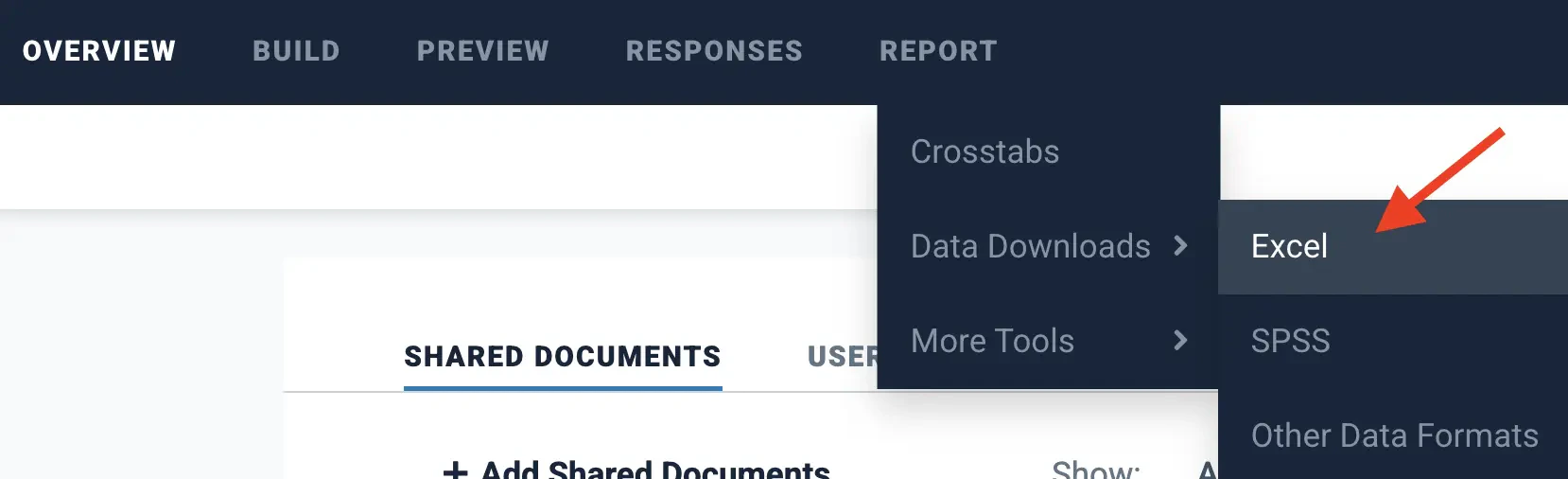
2
Wait for the export to finish
Decipher opens a status page while it prepares the export.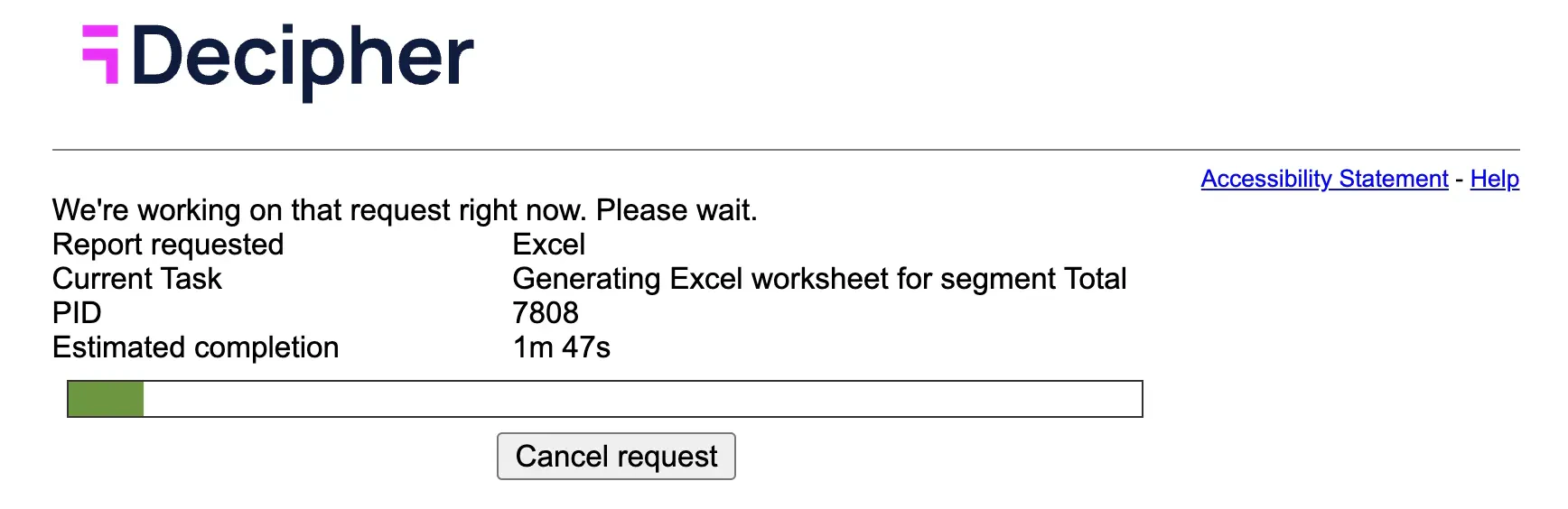
3
Upload the file
Open the downloaded ZIP file and upload the Excel file inside it to ReDem. ReDem detects the Decipher format automatically and selects the correct data and label sheets when possible.
AYTM
Export your survey data from AYTM and upload the Excel file directly to the Quick Import. ReDem detects the AYTM format and prepares the file for the import steps that follow.Confirmit
Export your survey from Confirmit and upload the Excel file directly to the Quick Import. ReDem detects the Confirmit format, maps the data and datamap sheets, and continues with the normal import flow. Confirmit exports includeinterview_start and interview_end timestamps but no length-of-interview column. ReDem adds a LengthOfInterview column during the import process so you can enable the Time Score without preparing that column yourself.
Quantilope
Export your survey from Quantilope and upload the Excel file directly to the Quick Import. ReDem detects the Quantilope format and prepares the codebook and data sheets automatically.IntelliSurvey
Export your survey from IntelliSurvey and upload the Excel file directly to the Quick Import. ReDem detects the IntelliSurvey format and prepares the file for the import steps that follow.Qualtrics
Export your survey from Qualtrics as Excel (labels in the export) and upload that file to the Quick Import. ReDem detects Qualtrics from metadata columns such asStartDate and ResponseId, then prepares the codebook and respondent rows automatically.
Conjointly
Export your survey from Conjointly and upload the Excel file directly to the Quick Import. ReDem detects Conjointly from metadata columns such asparticipant_id and datetime of participant creation, then prepares open-ends and grids for the import steps that follow.